
How to Clean Flutter and Dart Build Artifacts Across All Your Projects
- Zoran Juric
- How To
- 28 Mar, 2026
When you build apps with Flutter, your disk space vanishes. It happens faster than most teams expect. Every project leaves behind local build files and metadata. Meanwhile, Dart hides shared caches in folders you probably never look at. This guide shows you where that storage goes. I will also show you how to use BuildSweeper on macOS to get that space back without breaking your work.
Developers rarely stick to just one project. Your Mac probably has production apps, half-finished experiments, and old demos. Over time, these folders fill up with generated files. You needed them once, but now they are just taking up room.
You should think about two different buckets:
- Project-local artifacts sitting inside each Flutter app folder.
- Global caches used by every Flutter and Dart project on your machine.
This distinction matters quite a bit. If you only clean the current folder, you miss the giant system caches. If you only wipe the global cache, you still have old build/ folders and .dart_tool directories scattered everywhere. You have to handle both sides. Honestly, keeping track of it all is a real drag.
Note: A typical machine ends up with huge amounts of "disposable" data that tools created automatically.
When you run dart pub get, Dart saves packages in a shared system cache. The Dart docs say this lives in ~/.pub-cache by default. If you have the PUB_CACHE environment variable set, it might be somewhere else.
Inside each project, Dart writes metadata in a folder called .dart_tool. Specifically, the file .dart_tool/package_config.json helps the tool figure out where your dependencies are. Even a tiny project keeps this state. It is not source code, but it takes up space.
Flutter also builds the actual app inside a build/ directory. Depending on your target, you will see folders for Android, iOS, or macOS inside that tree. These folders are massive. They often stay on your drive long after you stop working on the app.
Here is the short version:
build/is the big output folder for a specific project..dart_toolis where local metadata lives.~/.pub-cacheis the shared folder for every project you own.
What is generally safe to clean?
If you want to reclaim space, you should target things that the computer can just make again.
Inside your projects, look for:
build/.dart_tool
Across the whole machine, look for:
- The global Dart/Flutter Pub cache.
- The Dart analysis server cache.
There is a tradeoff here. Deleting these files does not hurt your source code, but it does cost you time later. Your next build will take longer because the files must be regenerated. Packages will have to be downloaded again. The analysis server will need to re-index everything. None of this is permanent, but you will notice the extra waiting time.
BuildSweeper focuses on these specific boundaries. It looks for build/ and .dart_tool in your folders. It also finds the global caches so you don't have to search for them.
Cleaning one project is easy. The problem is scale.
The command flutter clean works fine if you are already in that folder. It is not very helpful when you have ten old apps in different places. You would have to cd into every single directory. There is no built-in way to sweep your whole computer at once.
Global caches are even messier. Since PUB_CACHE can move the folder, simply deleting ~/.pub-cache might not work. You also have to deal with the analysis server cache. It becomes a scavenger hunt. You might even delete something important by mistake if you aren't careful.
This is why people use BuildSweeper. It gives you one place to look at everything. You can see your projects and your global caches in a single list.
Cleaning Flutter artifacts with BuildSweeper
Clean project artifacts across many repos
This is the fastest way to handle many projects at once.
- Open BuildSweeper on your Mac.
- Click Scan project folder.
- Pick a folder that holds all your coding projects.
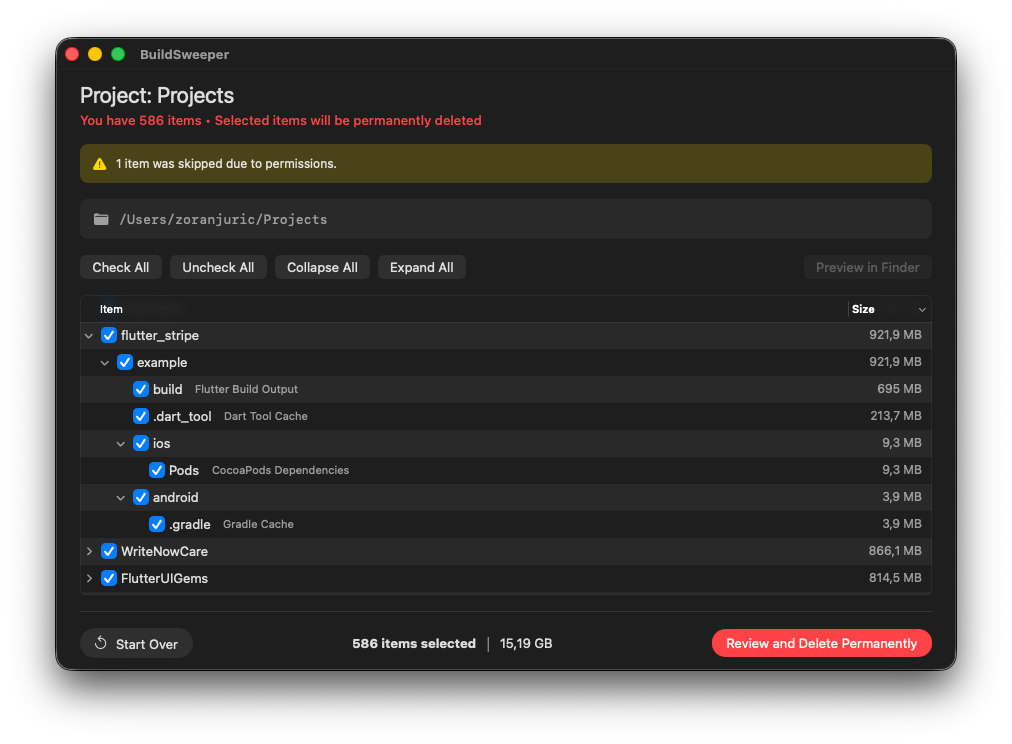
- The app scans the tree and finds Flutter projects by looking for a
pubspec.yamlfile.
The app will show you the build/ and .dart_tool folders for every project it finds. You can see the sizes and decide what to keep. If you are still working on one specific app, just uncheck it. You can clean the rest and leave that one alone.
Clean the global Flutter and Dart cache
Project folders are only half the story. You also need to hit the shared cache layer.
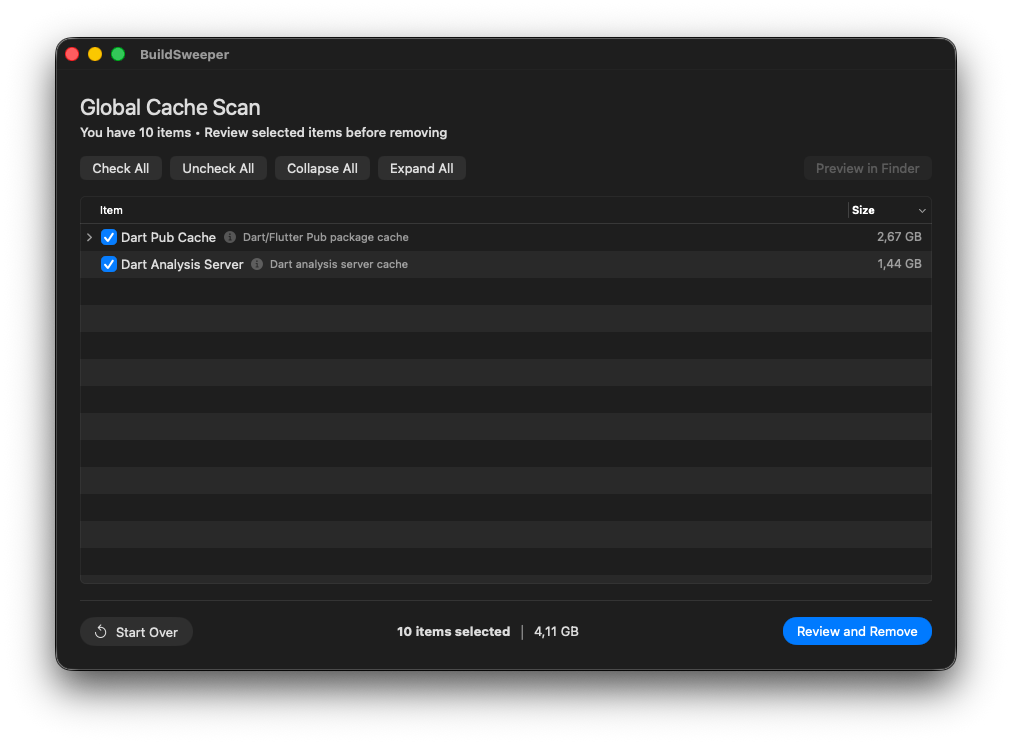
Choose Scan global cache from the main screen. The app looks for the Dart Pub cache and the Dart analysis server cache. It even checks your PUB_CACHE variable. This means it finds the right files even if you have a weird setup. This is great for teams with custom toolchains where things aren't in the usual spots.
Review sizes and delete safely
After the scan, the workflow is simple. You review the list, select what you want, and hit delete.
The app shows everything in a tree. You can see exactly how much space you will get back. I suggest starting with old build/ folders. You can save the Pub cache for later if you want to be safe. When you are ready, the app lets you confirm your choice before anything is moved to the Trash.
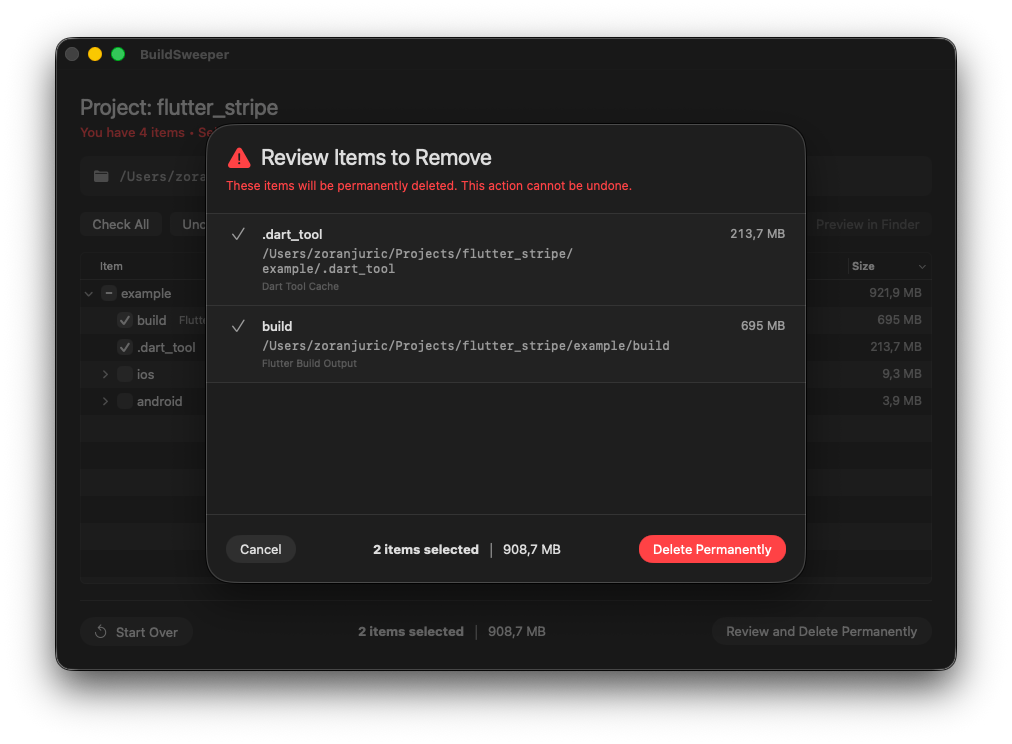
BuildSweeper also watches your running apps. If flutter, dart, or Android Studio are open, the app warns you. This prevents you from deleting a cache while a tool is trying to use it.
If you build multiple apps, the storage problem is too big for one command. You need a way to see everything at once. You should not have to guess which folders are safe to delete.
BuildSweeper handles this for you on macOS. It finds your projects using pubspec.yaml. It finds your caches automatically. You get to see the data before you click delete. Most developers find gigabytes of waste in less than a minute. It is a much better way to manage your machine.